1. Adding the PALITO Canvas
1. Insert the Palito Canvas
To begin using Palito, you must first insert the Palito Canvas.
You can start with the following code:
import { useRef } from "react";
import { Palito } from "../palito/Palito.jsx";

const ExamplePage = () => {
  const palitoRef = useRef(null);

  return (
    <div>
      <Palito
        ref={palitoRef}
      />
    </div>
  );
};

export default ExamplePage;
However, this code alone will not activate Palito’s core features.
You must also authenticate using an API key.
2. API Key Authentication
To use Palito, you need a valid API key. (For issuance, please contact Foxee Inc. via email: foxee0319.hwj@gmail.com)
Once you receive your key, pass it to the licenseKey prop to complete authentication.
import { useRef } from "react";
import { Palito } from "../palito/Palito.jsx";

const ExamplePage = () => {
  const palitoRef = useRef(null);
  const LICENSE_KEY = "key-XXXXXXXXXXXXXXXXXXXXXXXXXXXXXXXXXXXXXXXXXXX";

  return (
    <div>
      <Palito
        ref={palitoRef}
        licenseKey={LICENSE_KEY}
      />
    </div>
  );
};

export default ExamplePage;
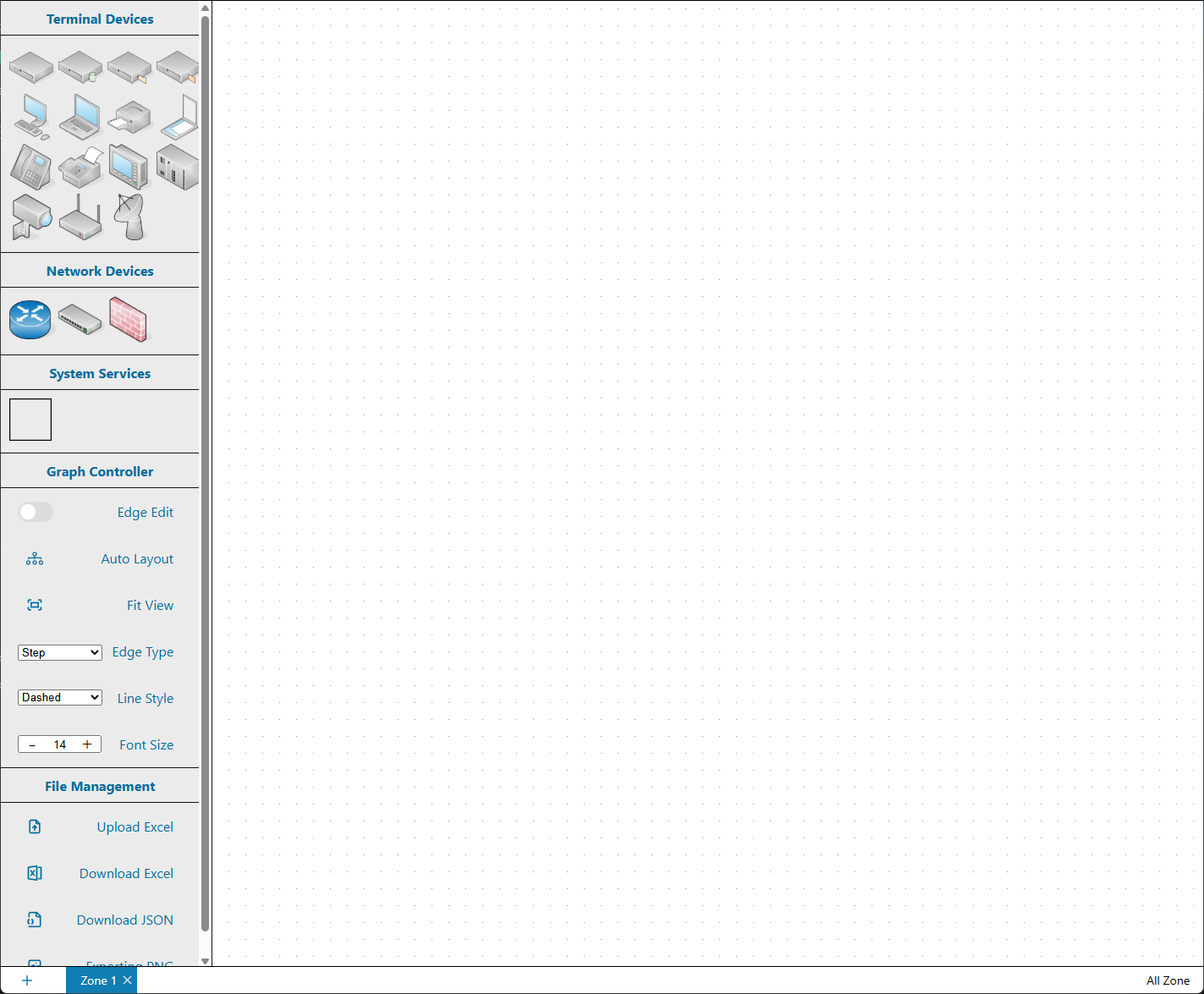
Now you’re ready to begin using the full functionality of Palito.
Next Guide
Move on to Generating a Topology to learn how to add nodes and connect them to create a visual network topology.